
Bring in your permit
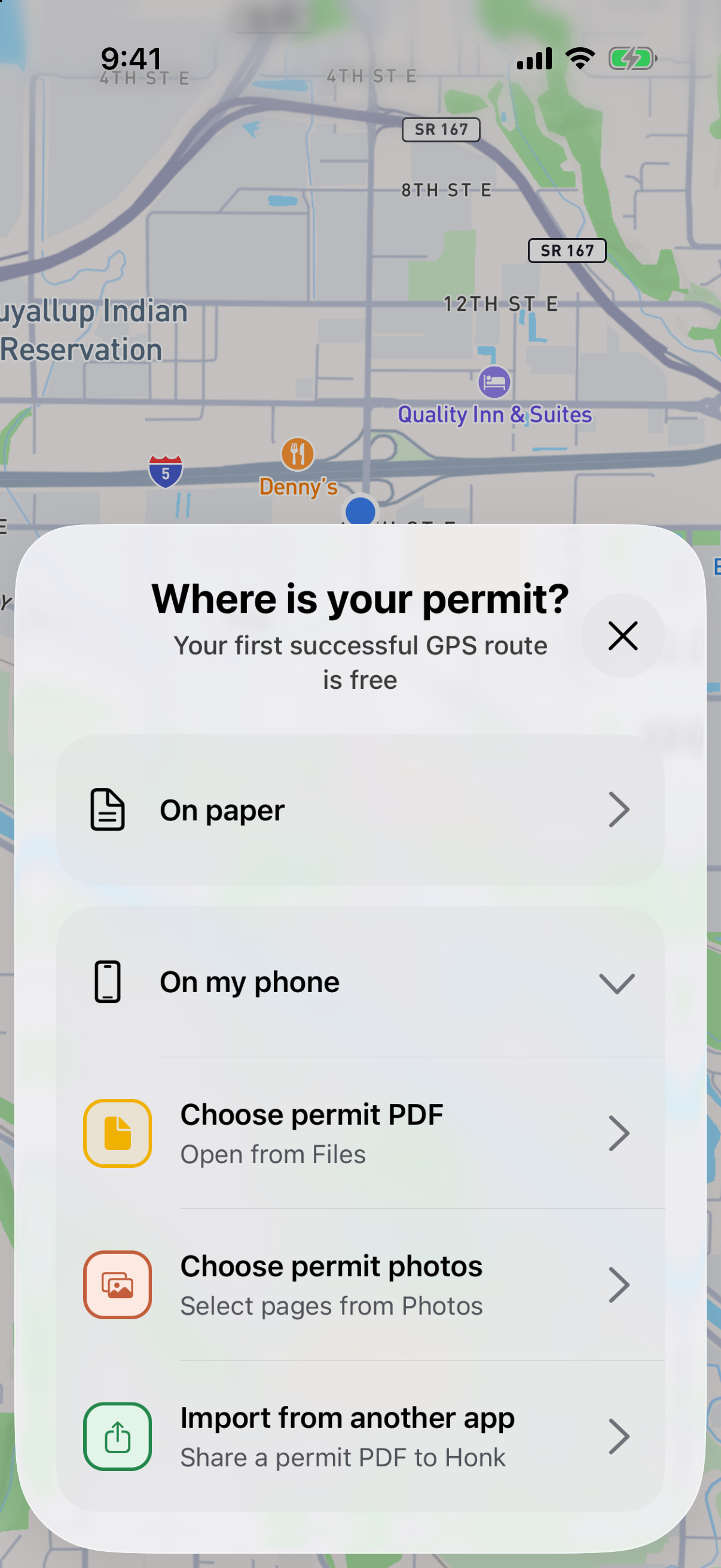
Open Honk and choose where your permit is. Scan the paper, choose a PDF or photos, or share the permit from another app. Include every page.
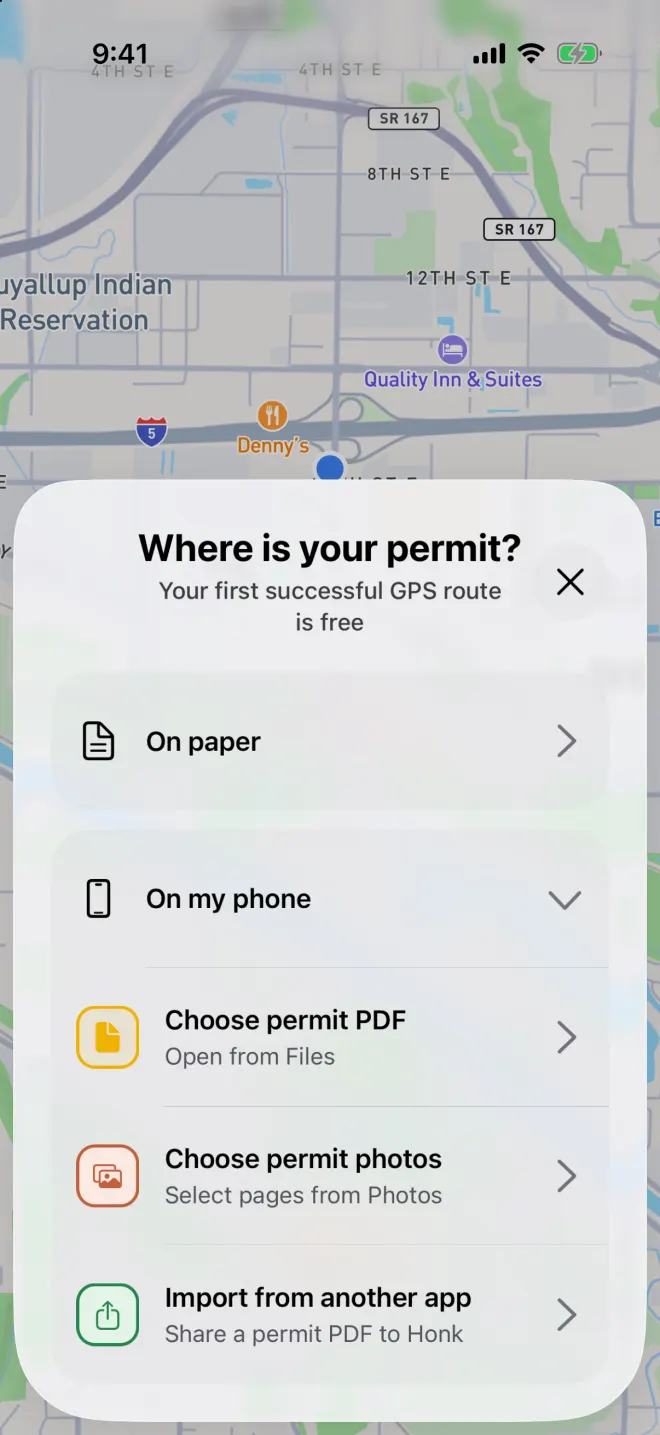
Choose a PDF, photos or another import method in the current Honk permit chooser. Watch your route take shape
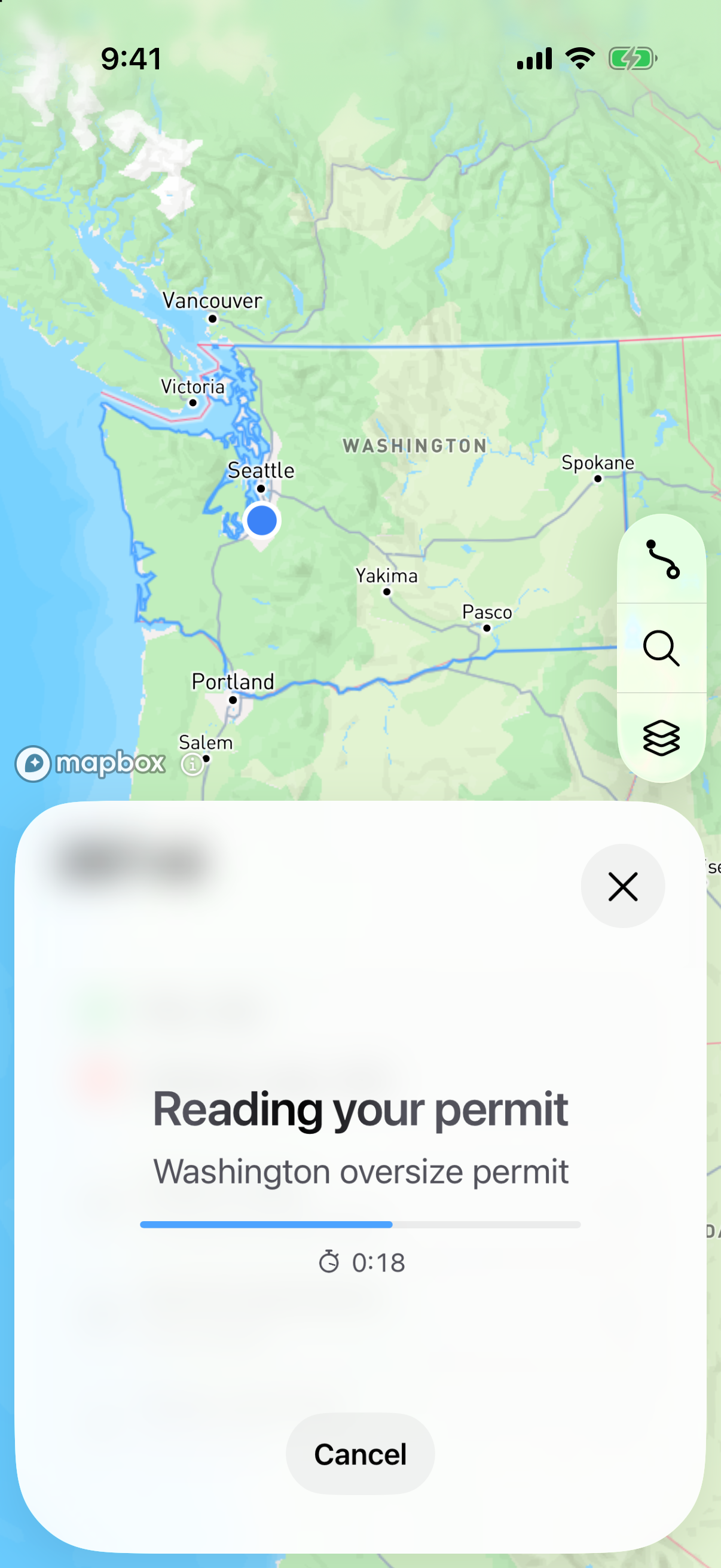
Honk reads the directions, then builds a route that follows the roads on your permit. You’ll see its progress as it works.
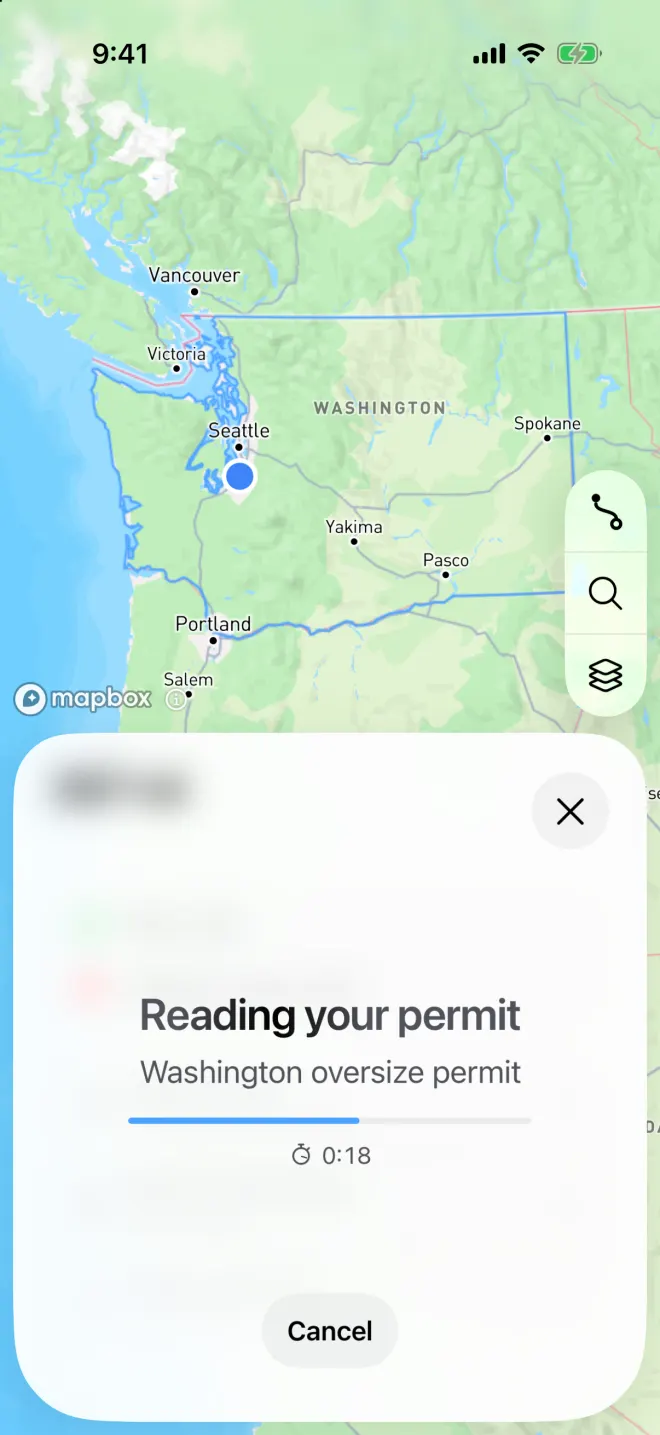
Honk reads the directions from the example Washington permit before building its GPS route. See your finished route
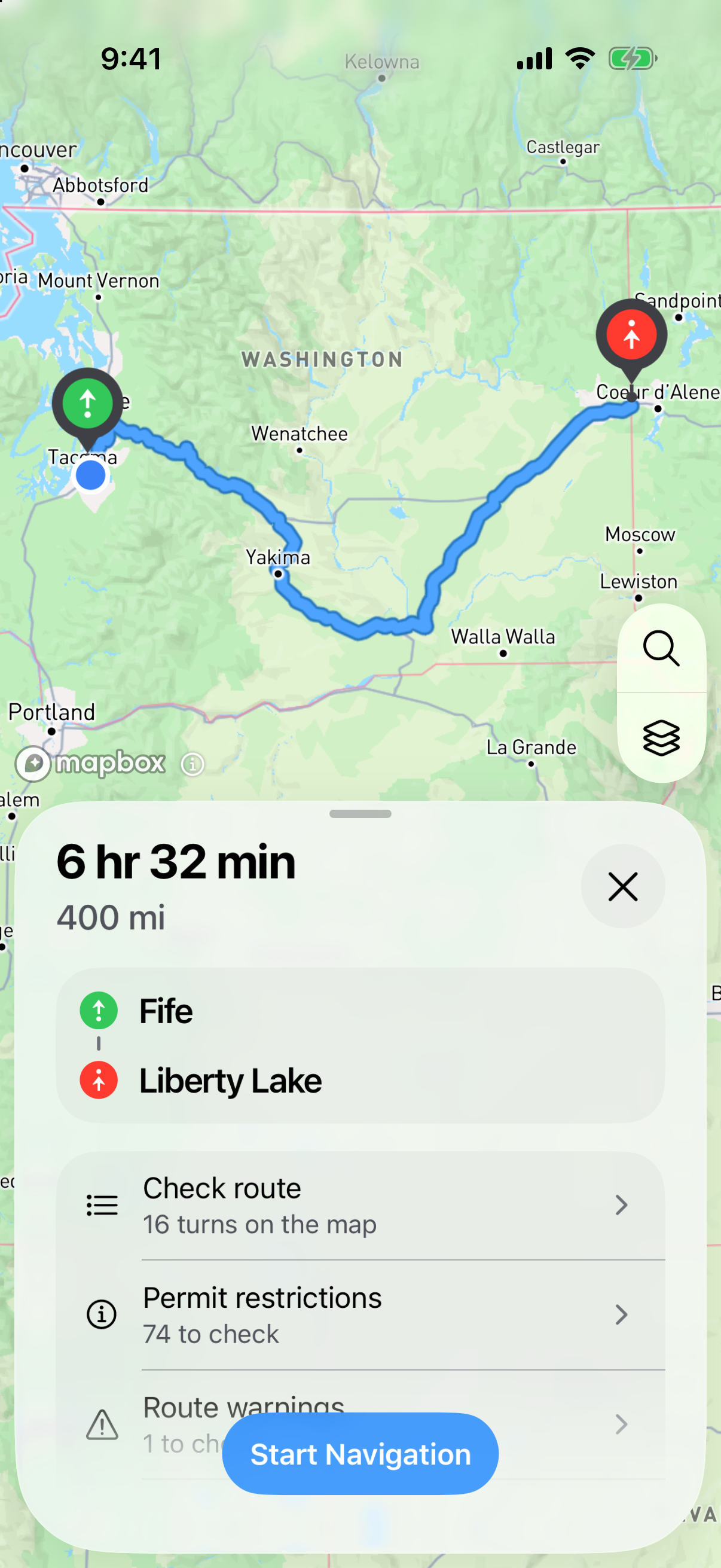
When processing finishes, your route appears on the map. The sheet below shows the start, destination and trip details. Tap Check route to compare the turns with your permit.
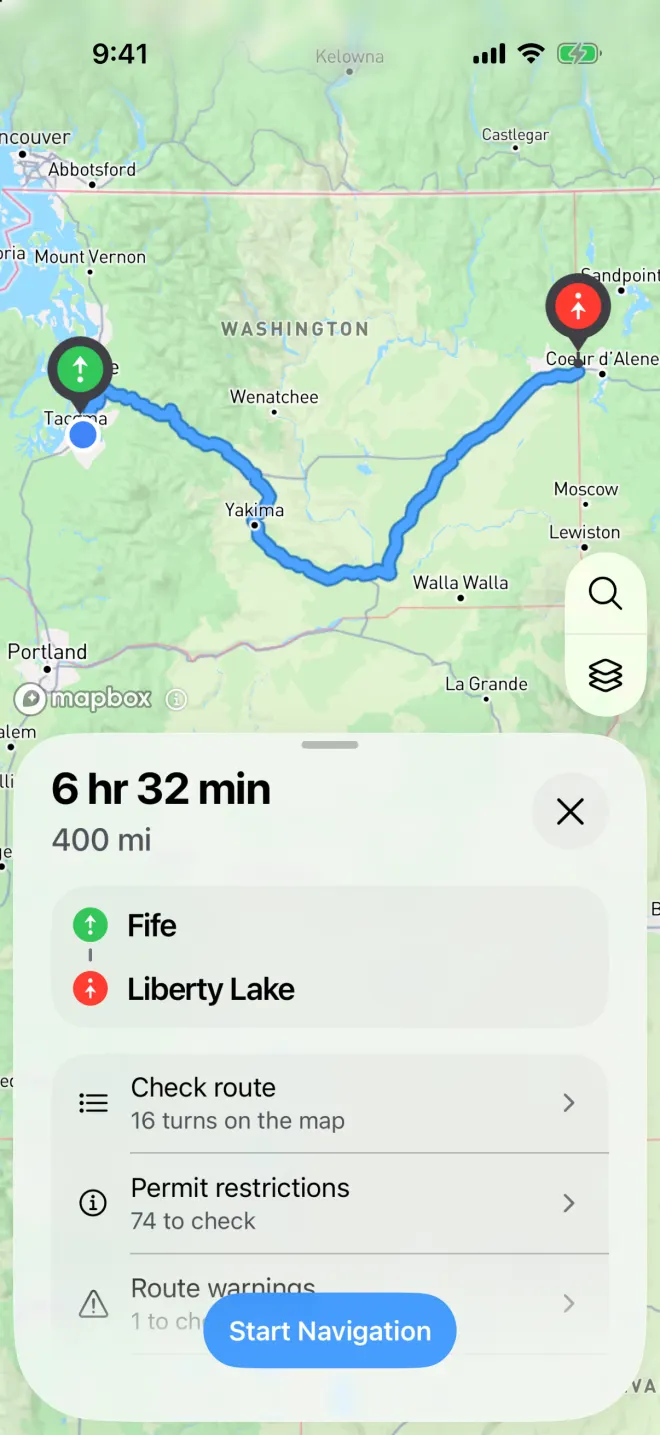
The freshly processed route from Fife to Liberty Lake, with its route-check and navigation controls. Easily verify permit details
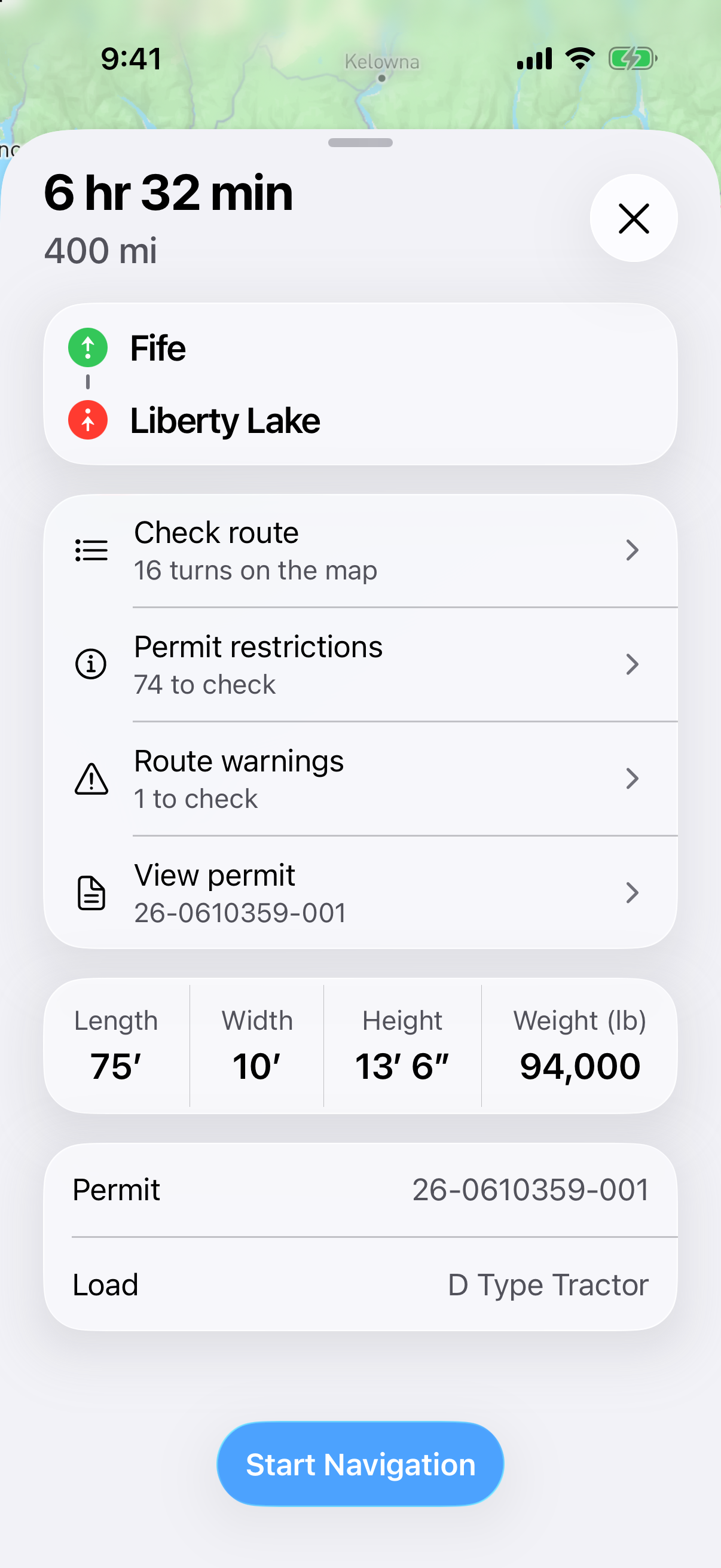
Slide the route sheet up to see the permit number, load description, dimensions and weight in one place. Compare the details with your original permit at a glance.
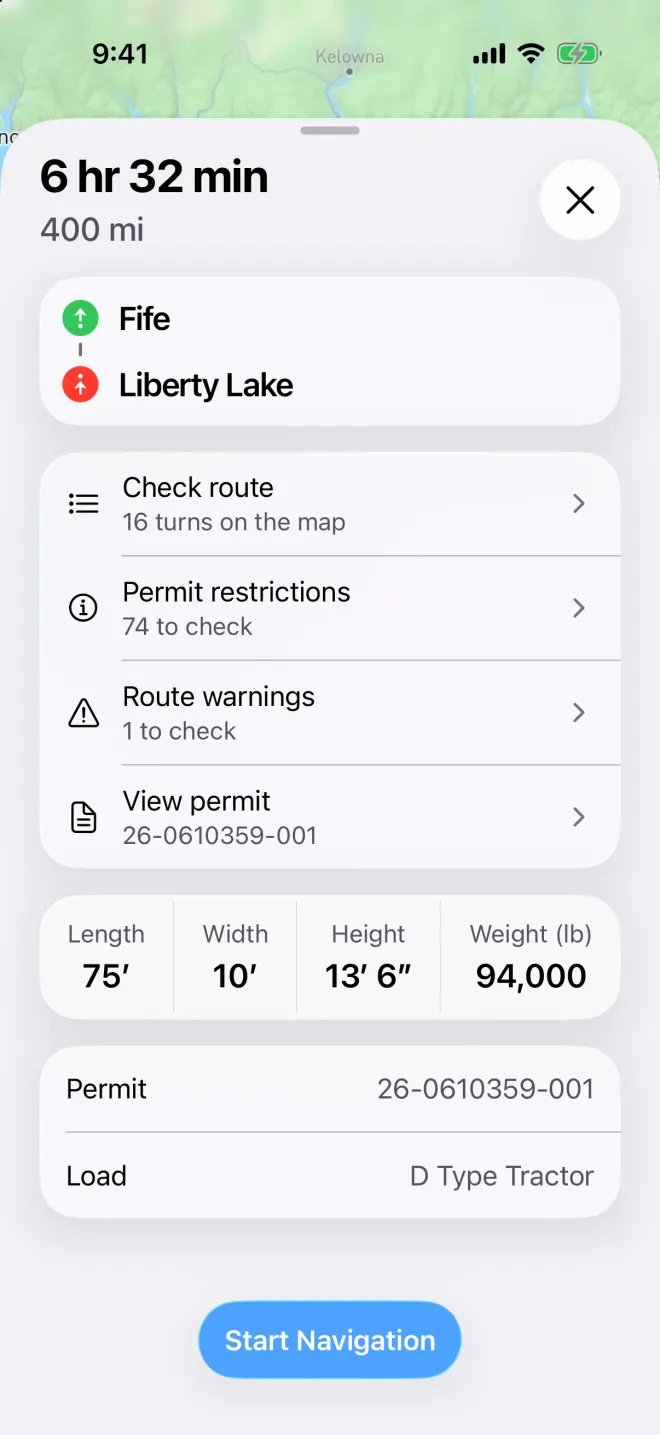
The permit number, load description, dimensions and weight from the example permit, shown together in one view. Start navigation
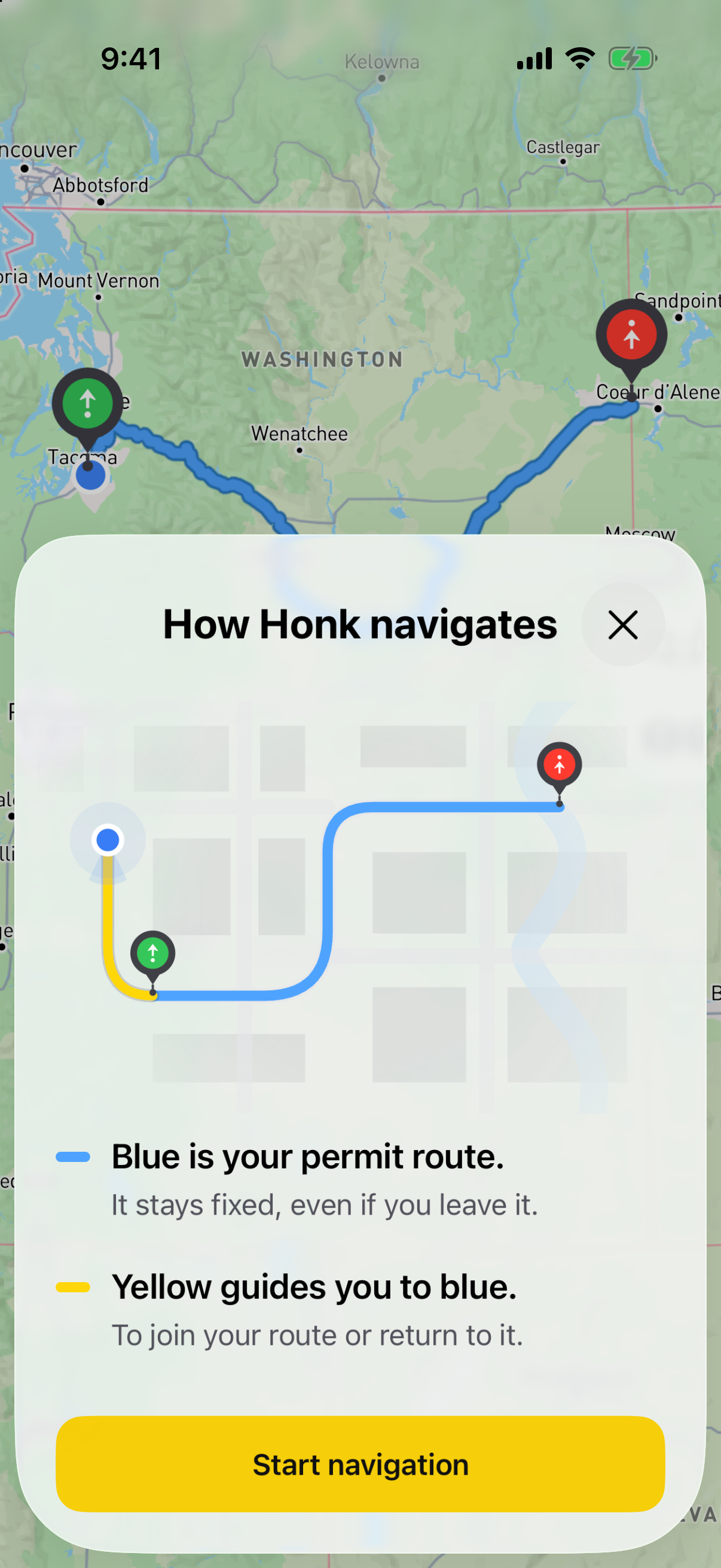
Tap Start Navigation and allow precise location when asked. On your first trip, Honk explains the blue permit route and yellow connecting directions. Read the note and terms before continuing.
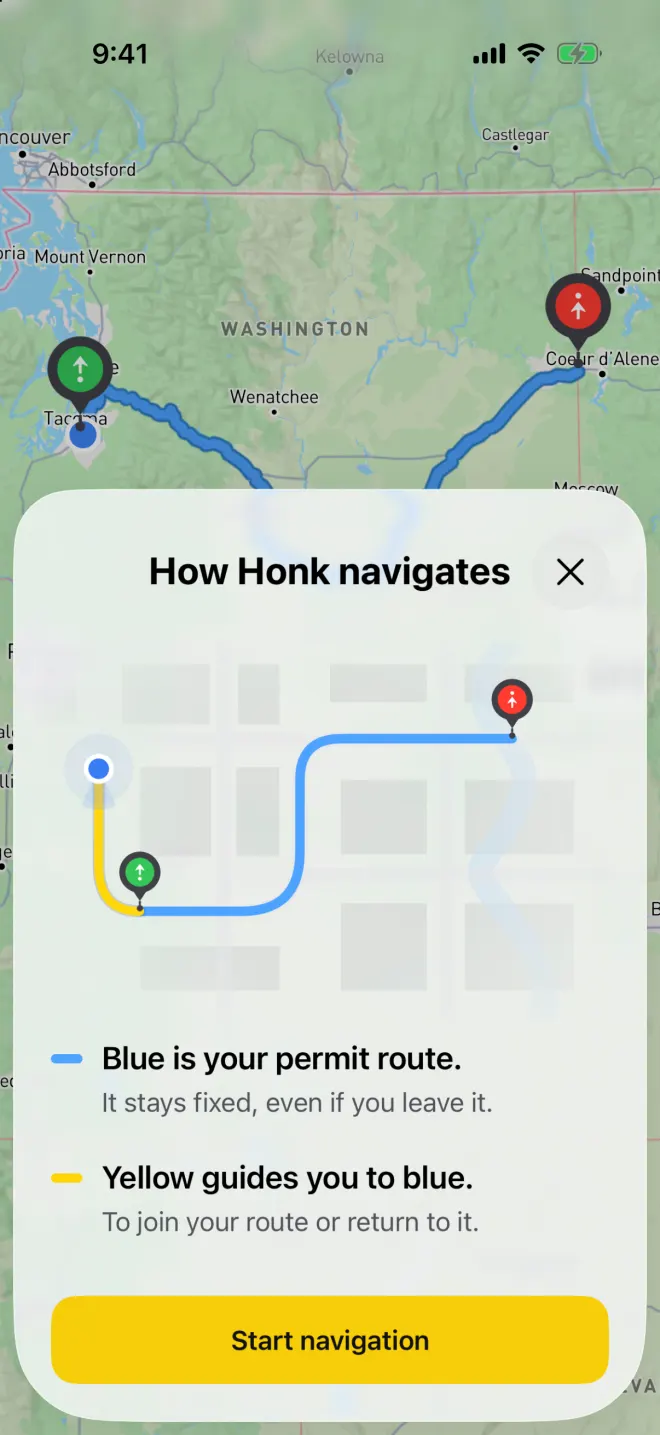
Honk’s first-trip explanation: blue follows your permit; yellow helps you reach or return to it. Follow your next turn
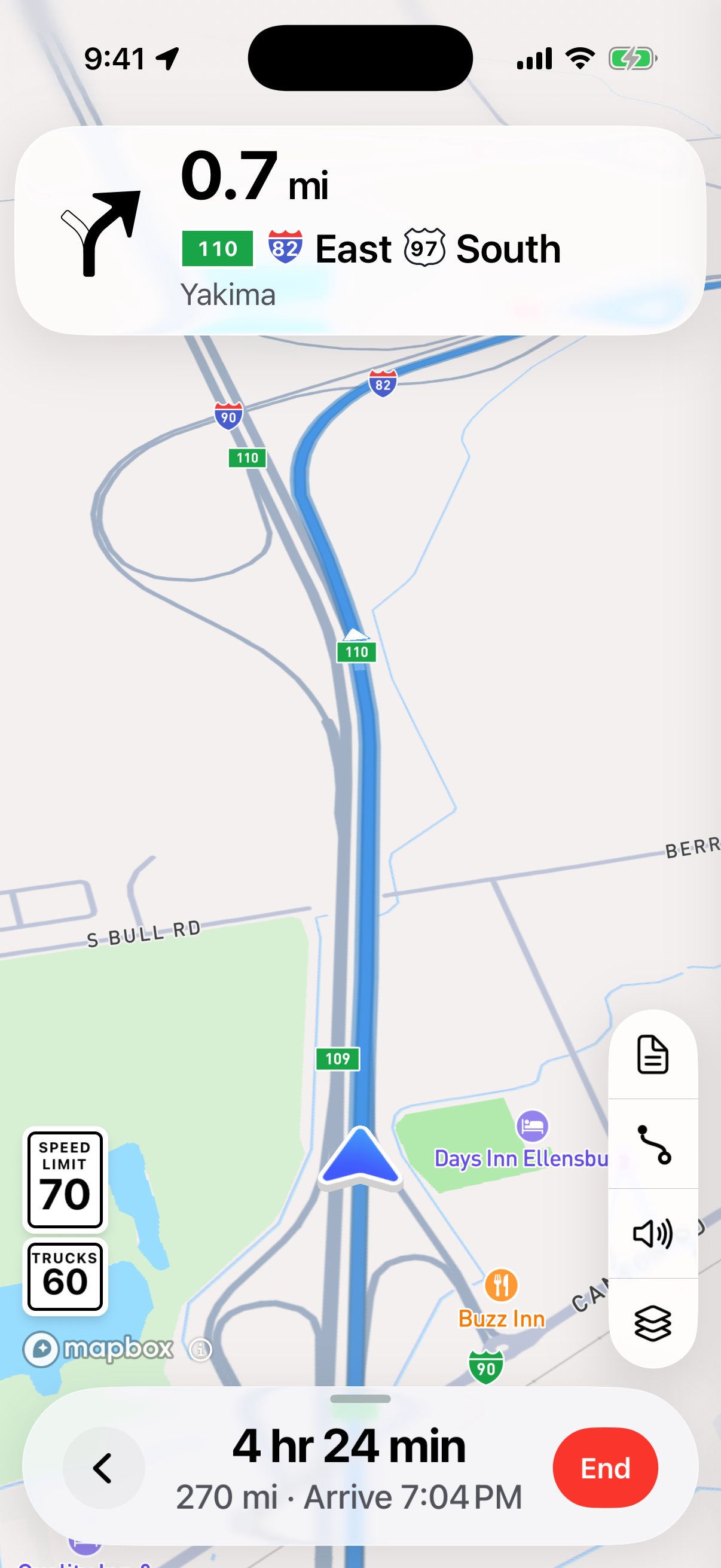
Honk keeps your next turn in view. Use the speaker button for spoken directions, or tap the turn banner to see what comes next.
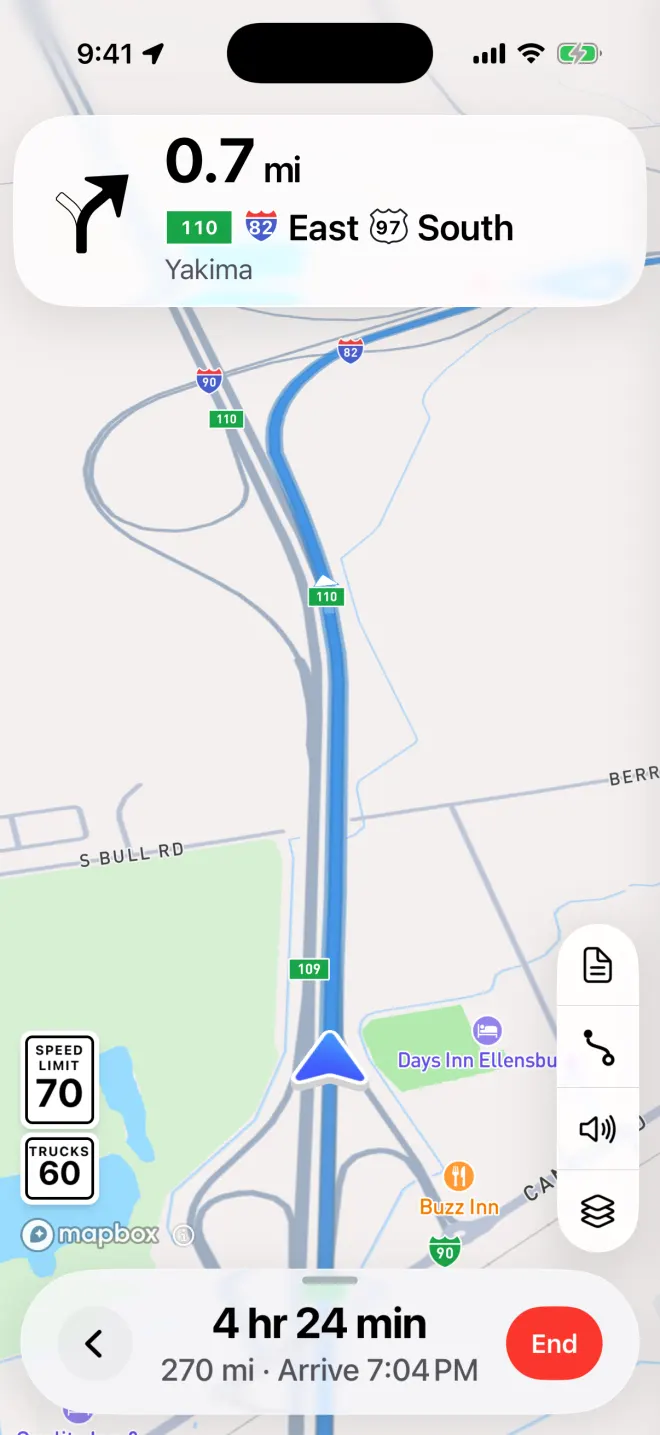
The current Honk navigation UI, following the blue permit route with simulated GPS.
One minute to learn the flow
This is a quick walkthrough of the steps. The time to process your permit depends on the document and connection.
Try your first permit free
You can get started without signing up. When you need more permits, open your account and choose Billing.